Nutanix Migration Lab - Part 2
In part 1 I deployed a Move appliance, and added some source environments. In this post I will migrate a single workload to AHV to test the migration patern
Validate Source and Target Enviroments
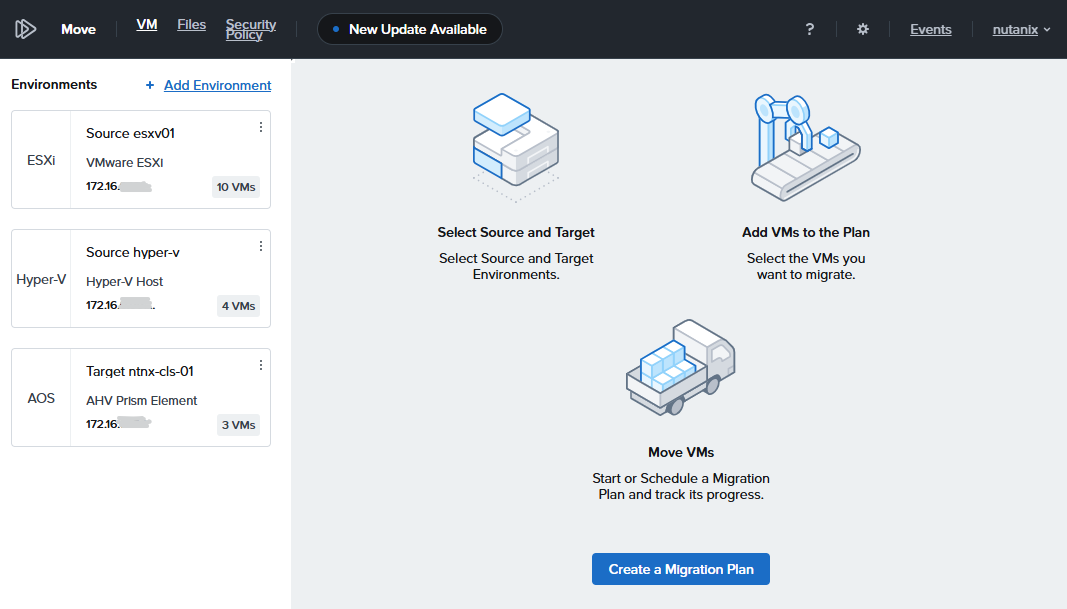
I previously I added two source environments (ESX and Hyper-V) and the AHV cluster as target
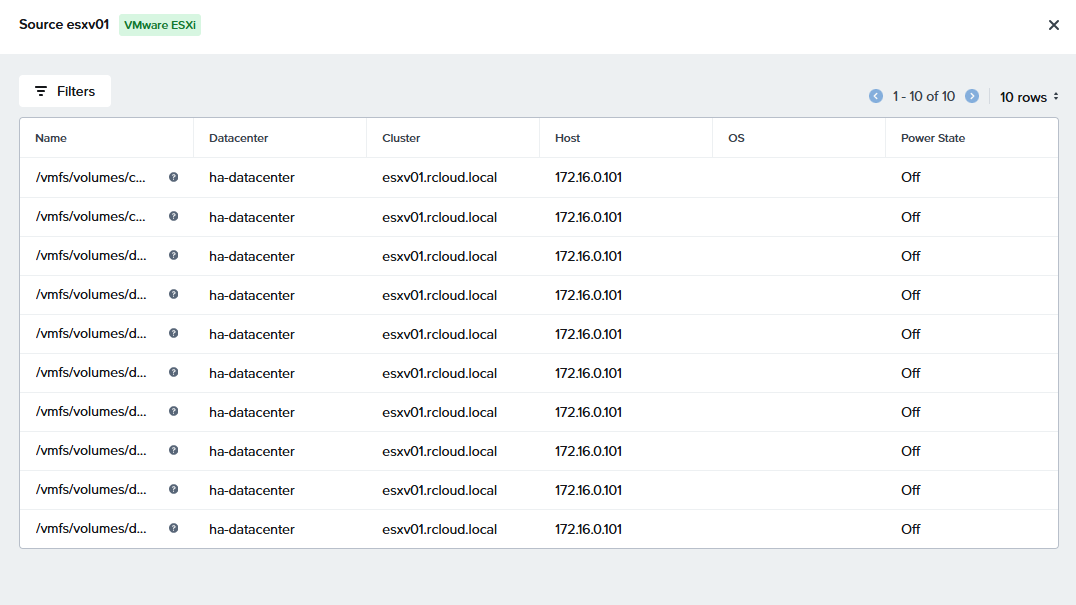
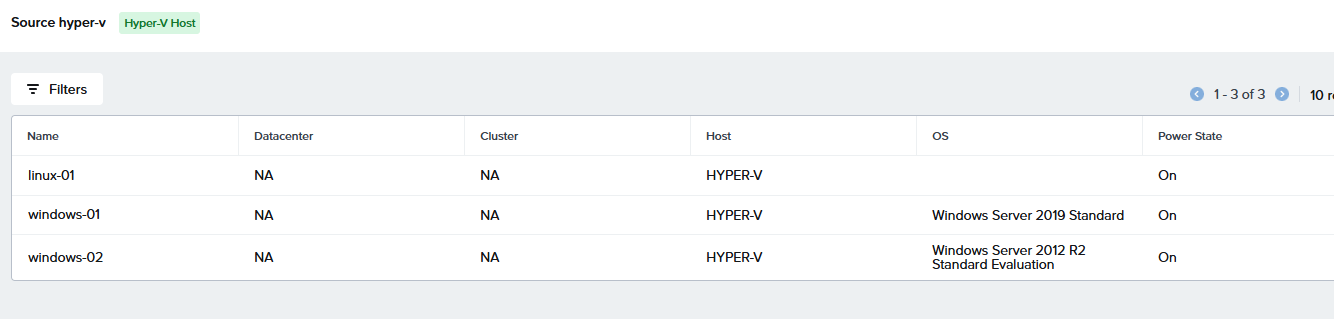
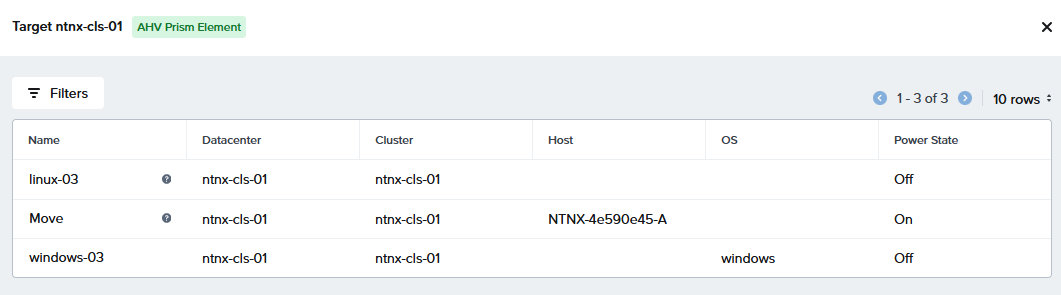
On each Enviroment clicking on the three dots will show the Environment Details and VMs that can be moved
Source - esx
Source - hyper-v
Target - AVH
Warning: The standalone free version of ESX has restrictions on allowing Move to autheticate to VMs. Hyper-V Gen 2 instances use UEFI as default not legacy BIOS, Nutanix CE has issues migrating UEFI
## Prerequisites Hyper-V
- Guest VMs are Gen 2 with legacy BIOS.
- Guest VMs have connectivity with Move.
- Disable backups.
- Guest VMs have integration services installed and an IP address is present in the Networking section of the Hyper-V manager for automatic preparation of the source VMs.
- Inbound and outbound ports TCP 5986 and 5985 are enabled for (WinRM) feature to work.
- In the Hyper-V host, download move-agent-installer.exe from http://nutanix-move-ip/downloads/agents/move-agent-installer.exe.
- Launch the command prompt with Run as Administrator to run the following command from C:\Users\Administrator.
- move-agent-installer.exe -o [operation] -ip [move ip] -u [user]
- Replace nutanix-move-ip with the IP address of the Move VM.
Create and Execute a Migration Plan
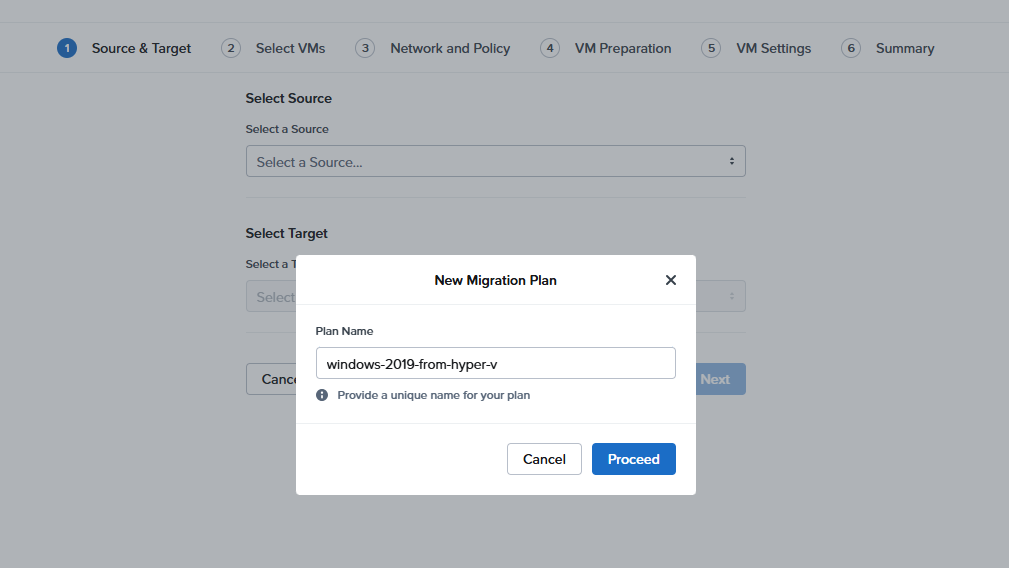
Click on create a migration plan and give the plan a name
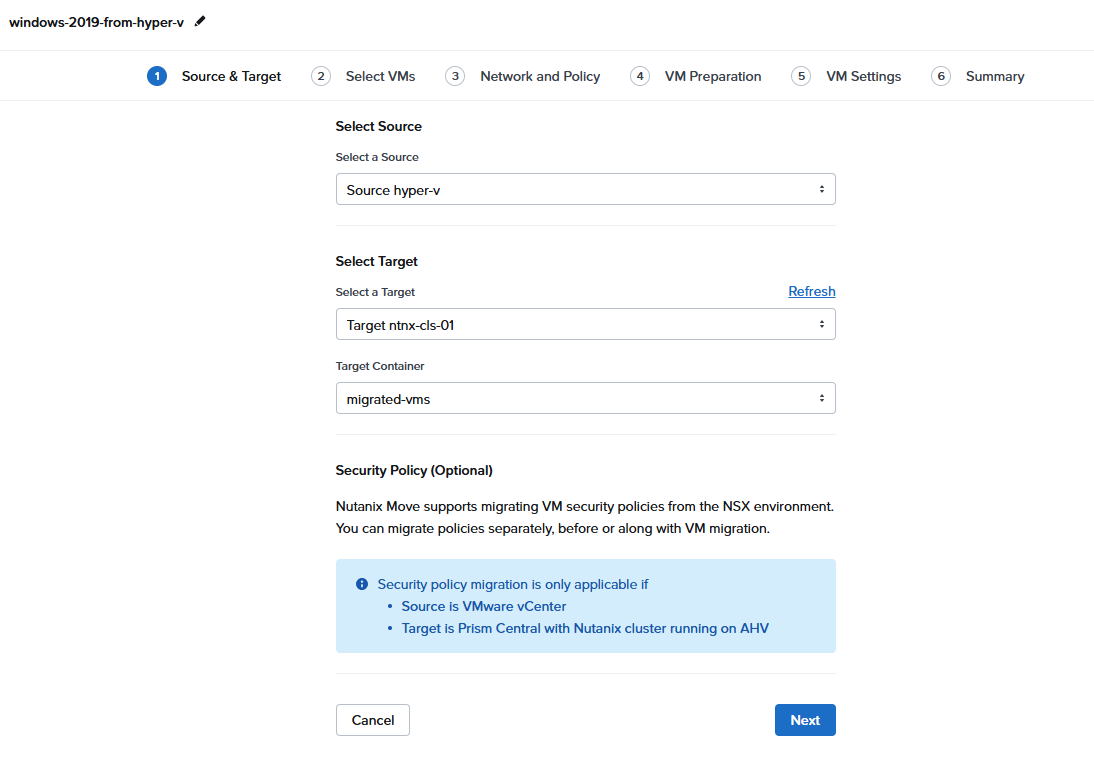
1. Choose source and destination
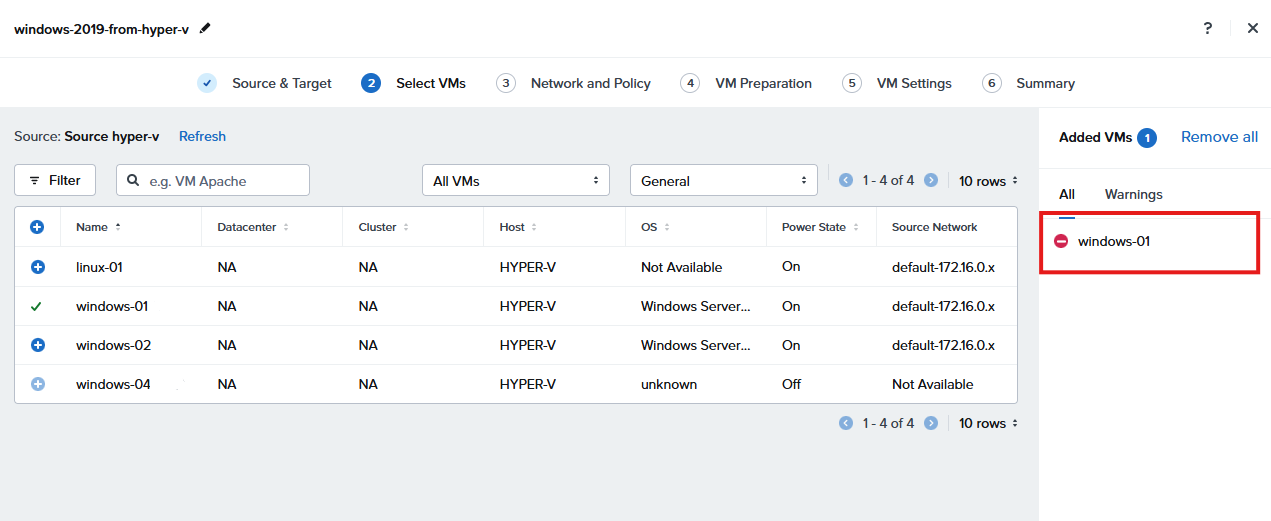
2. select the instances to move
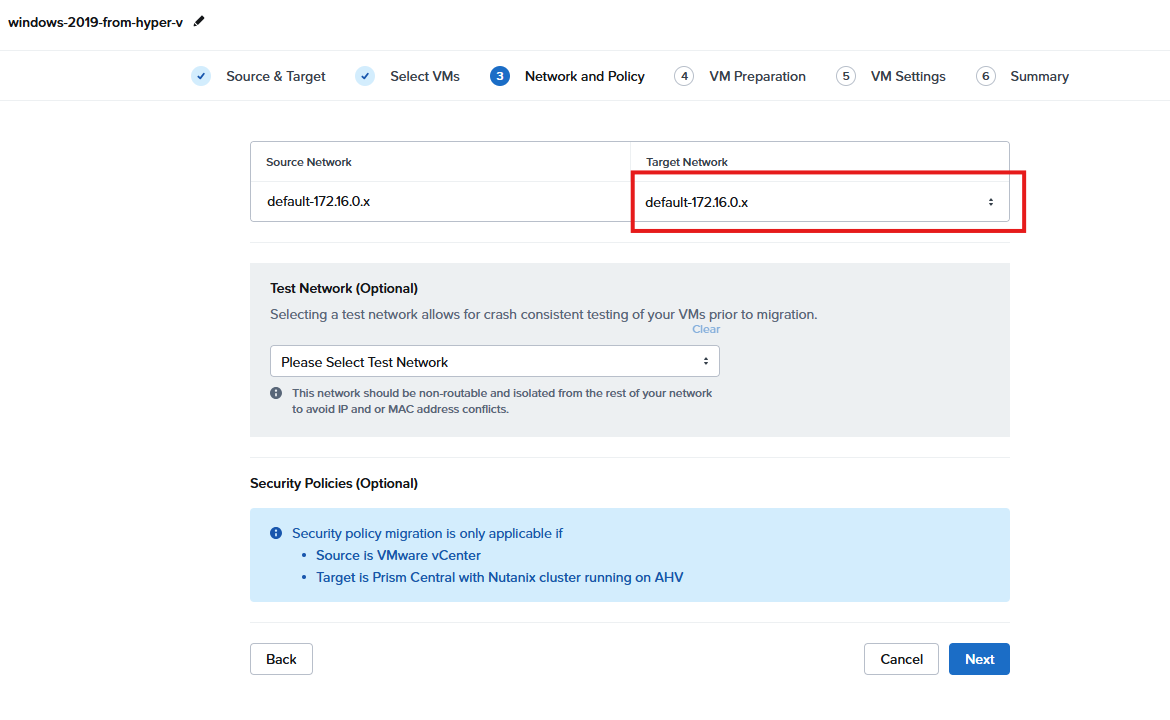
3. select the target network
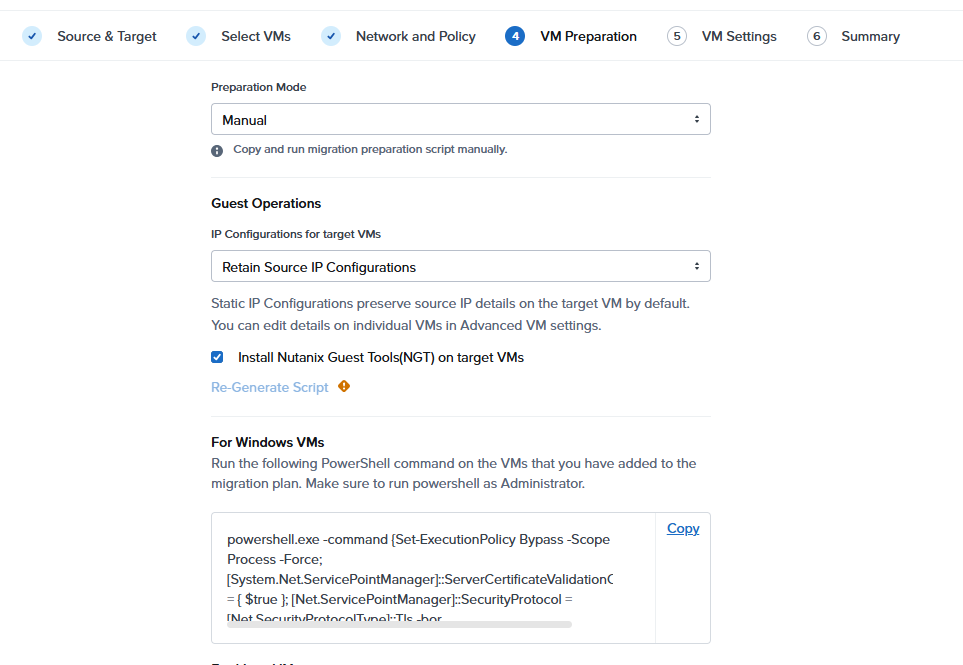
4. The preparation mode
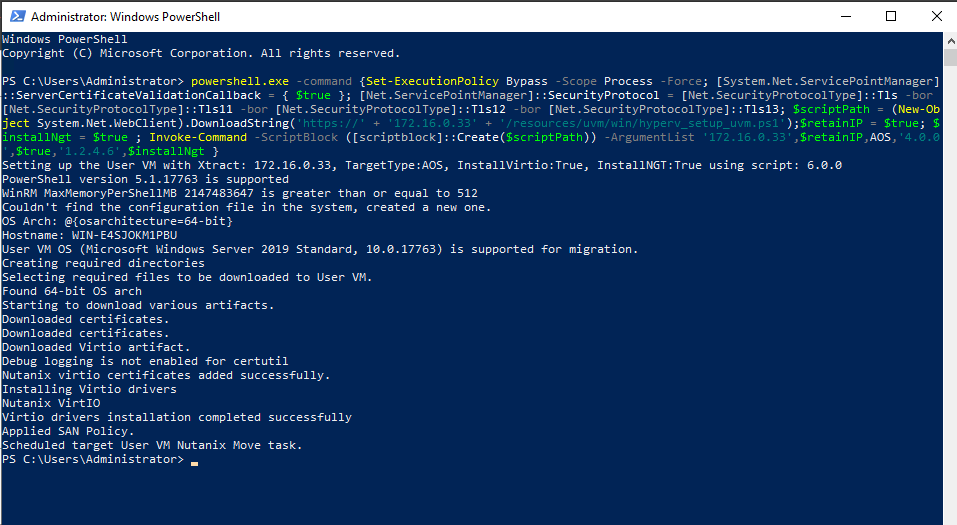
Run the setup script on the VM
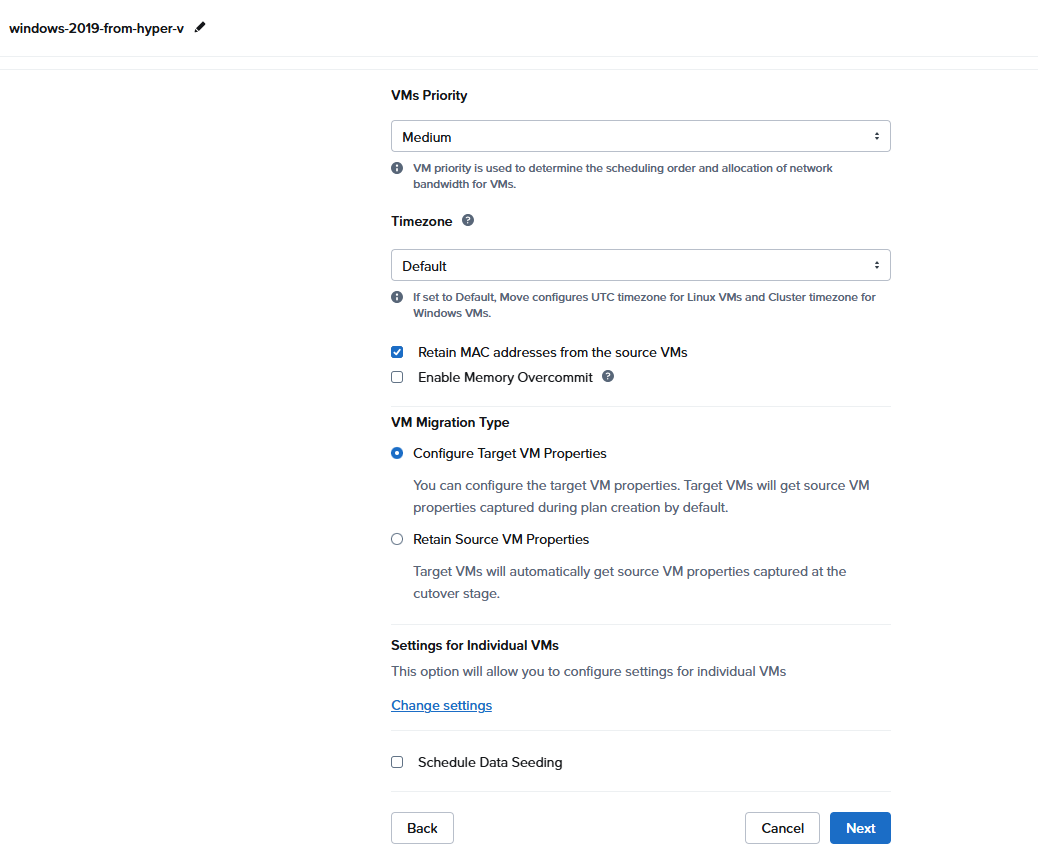
5. VM Settings
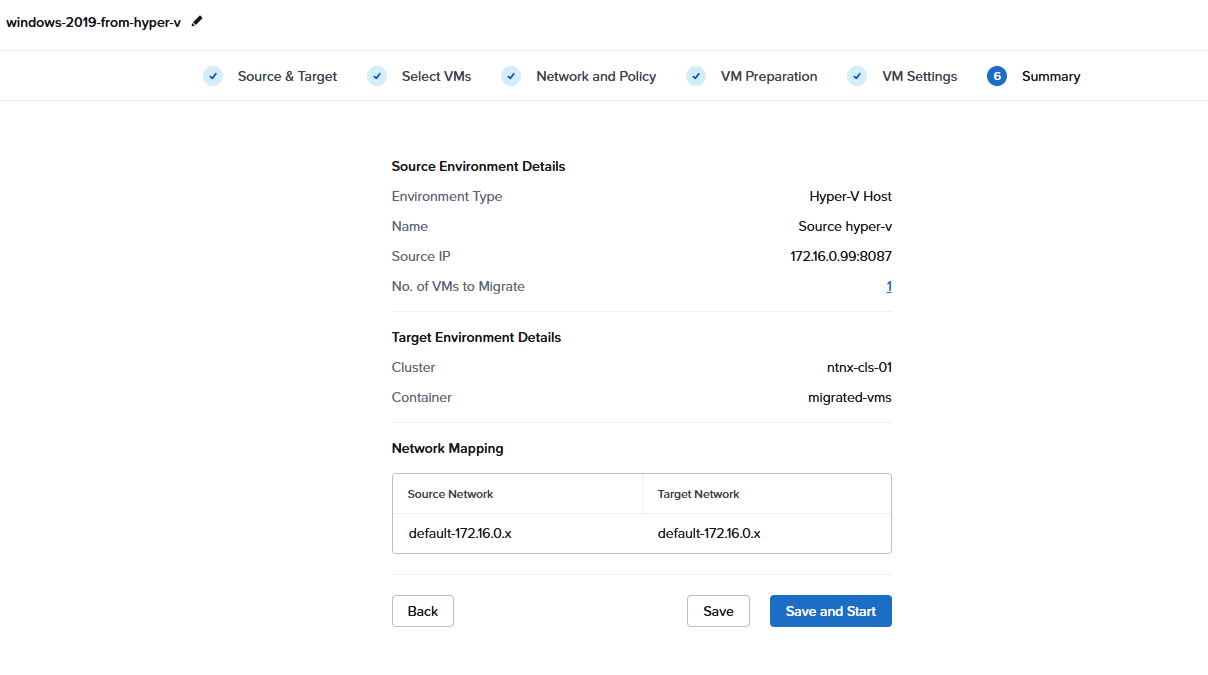
Review the summary and start
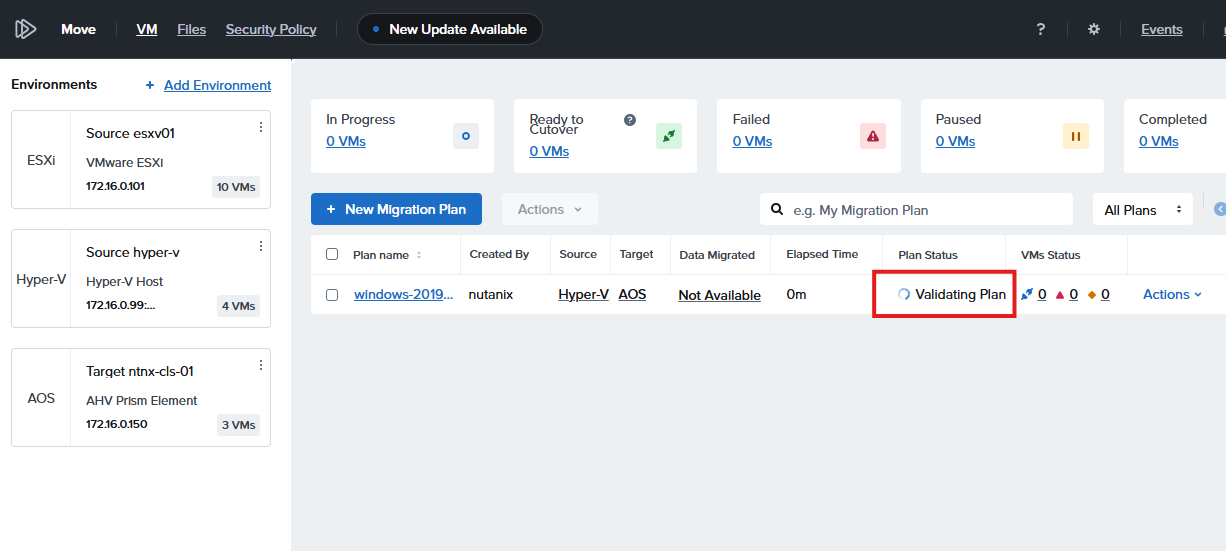
Wait for plan to validate
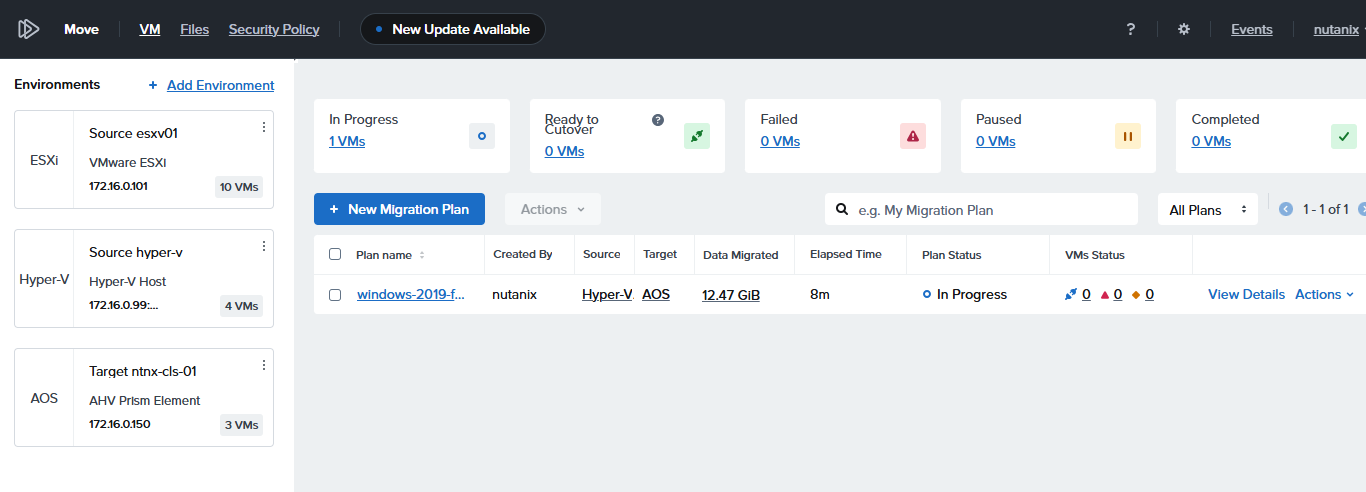
Plan should change to In Progress
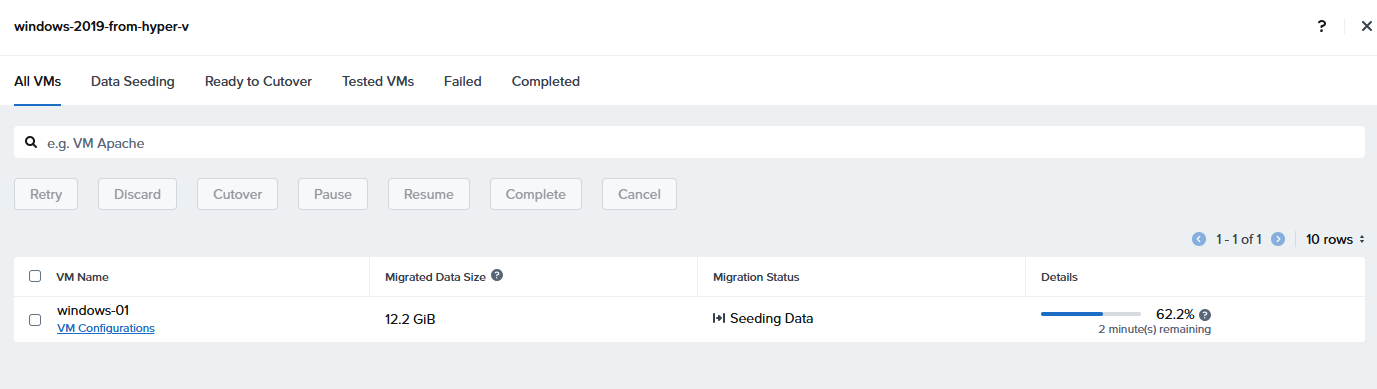
In View Details the remaining time can be seen
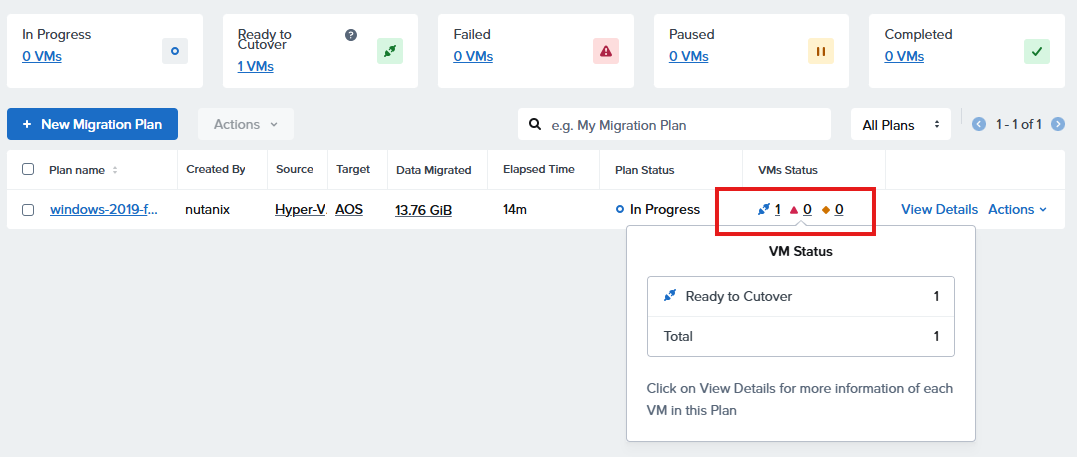
Finally the plan VM status will change to Ready to Cutover
Open View Detail and start the Cutover
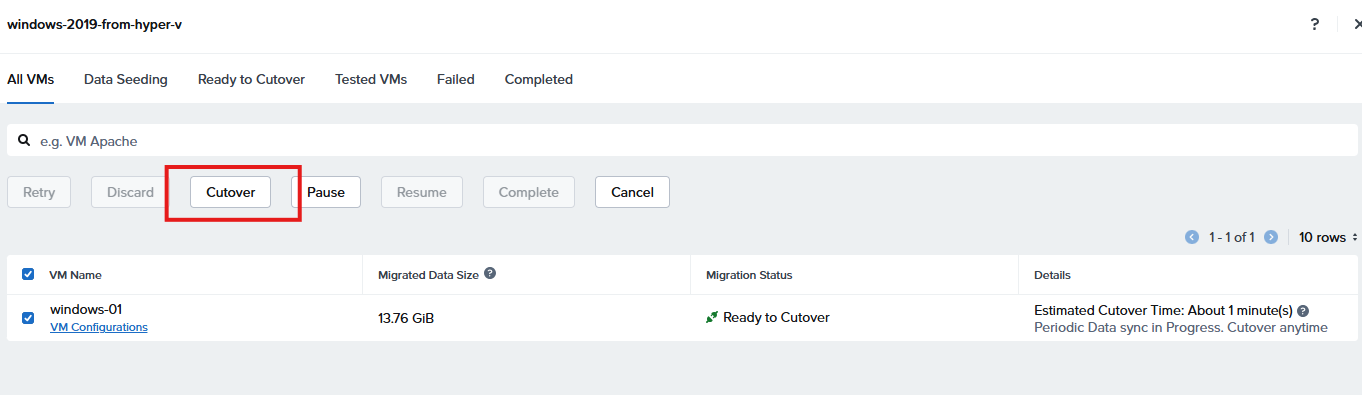
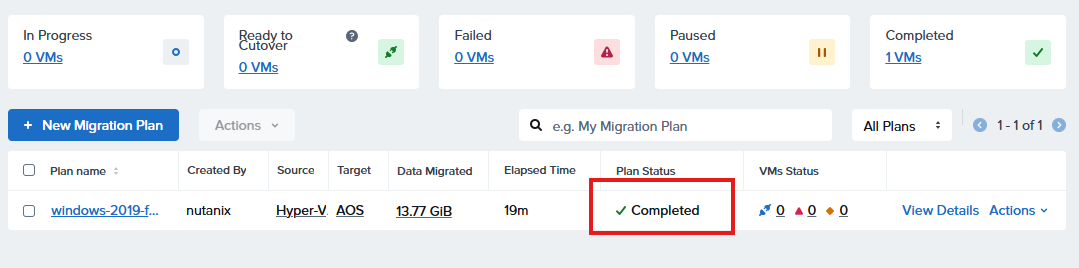
Wait for Cutover to complete
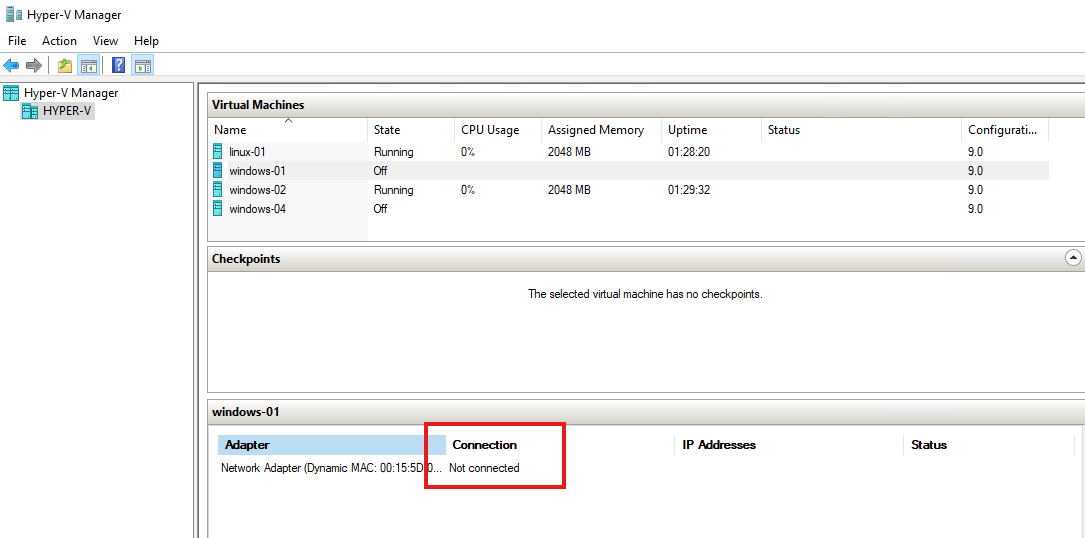
Check the source the VM should be Powered Off and the network card Not connected
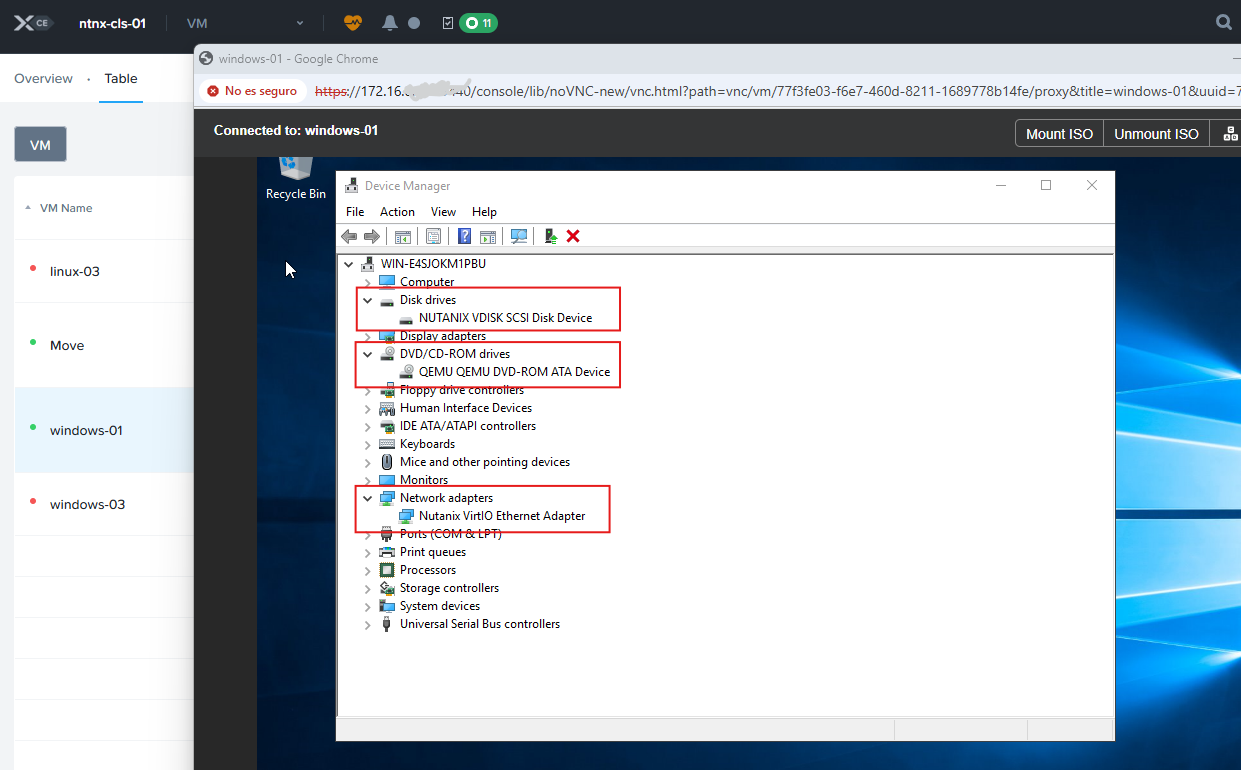
On the nutanix cluster, check the VM is running, connect to the OS, open devmgr and verify the Nutanix drivers are present
#MCExperts, #MCX