Nutanix Migration Lab - Part 3
In Part One I deployed the Nutanix Move appliance, in Part Two I created my first migration plan and tested the migration of a Windows 2019 Server from Hyper-V to AHV
In this post I will test moving older versions of Windows:
- Windows 2012
- Windows 2008 R2 SP1 one instance with VMware tools installed and another Windows 2008 R2 without any Service Pack or VMware tools.
These are the oldest supported Windows versions if you are using recent versions of Nutanix software
[IMPORTANT] Windows 2008 R2 requires VMware tools, to install the VMware tools Windows 2008 R2 requires SP 1 and KB4474419.
[WARNING] All versions use BIOS, Nutanix CE has problems booting systems with UEFI, these issues are only seen on the community edition, licenced or NFR versions do not have the same problem.
[WARNING] The standalone free version of ESX (8.0.3) has restrictions on allowing Move migrations.
Create a Migration Plan
Connect to the Move Console
I previously added source and target environments (ESX and the AHV)
On each enviroment clicking on the three dots will show discovered VMs.
Create a Migration Plan
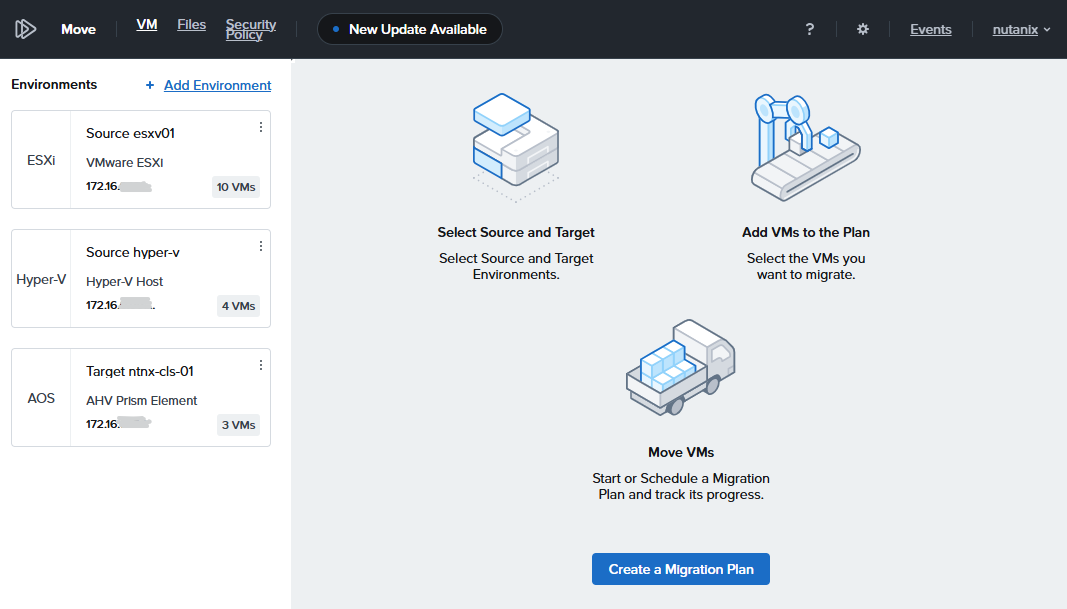
1) Source and Target
Select VMs
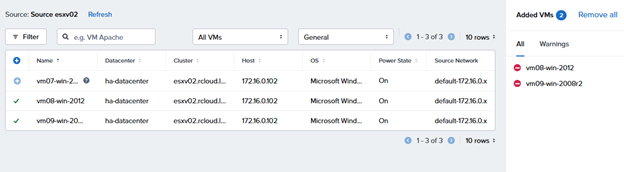
Note why a VM is not available to migrate
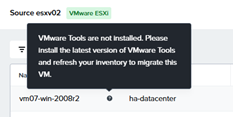
Unless we upgrade Windows Server 2008 R2 to SP1 we cannot migrate that instance.
2) Network and Policy
Choose the target network
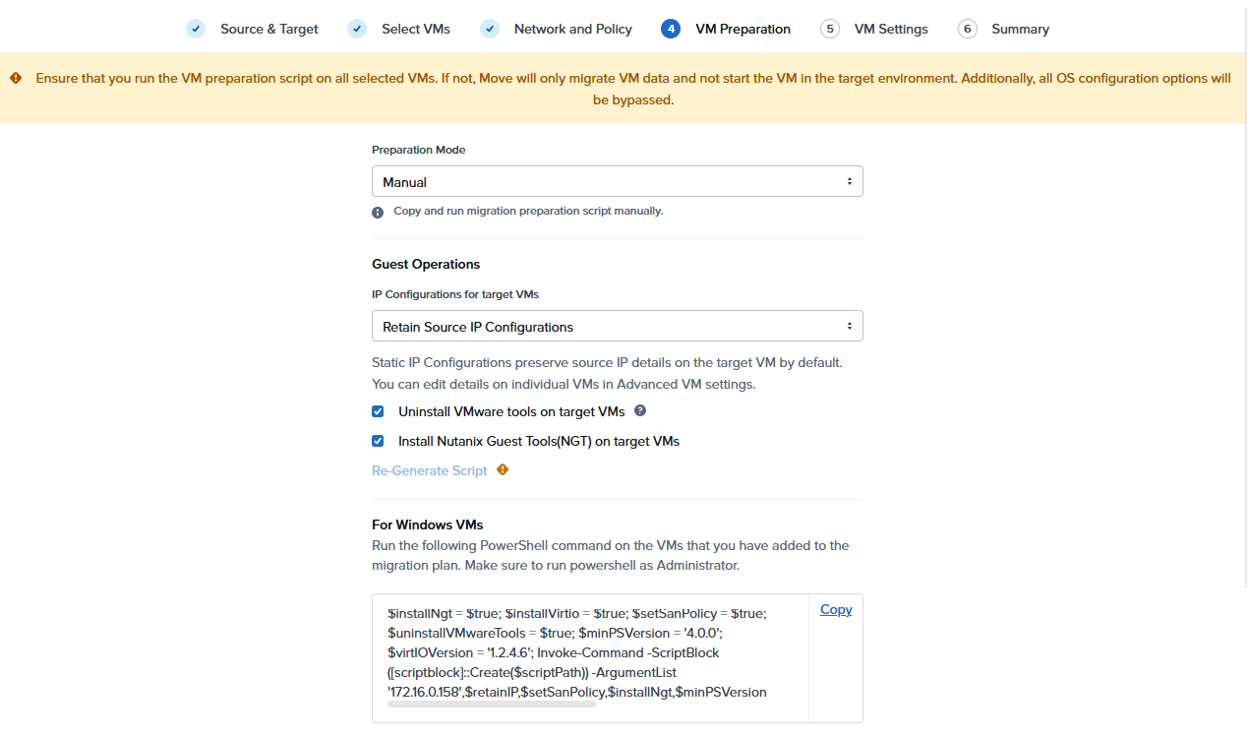
3) VM Preparation
Choose manual preparation – as these are older systems, there are a number of dependencies that we need resolve first (For all depedancies I will use minimal supported or the next version rather than the latest)
Update PowerShell on Windows Server 2008 R2
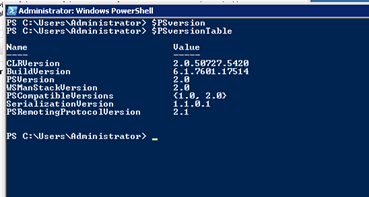
RDP to the target server and run the command $PSversionTable to check the powershell version
The default version of PowerShell on Windows 2008 R2 needs updating to PowerShell version 4.0 or later.
First download and install .NET Framework 4.5.2 or later
https://www.microsoft.com/en-us/download/details.aspx?id=42642
Next download and install Windows Management Framework (WMF) 5.1 file from Microsoft
https://www.microsoft.com/en-us/download/details.aspx?id=54616
The required file is Win7AndW2K8R2-KB3191566-x64.zip
Once the update is installed check the Powershell version again
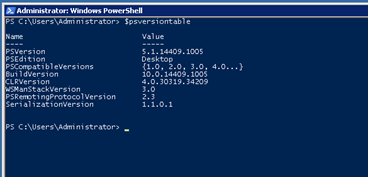
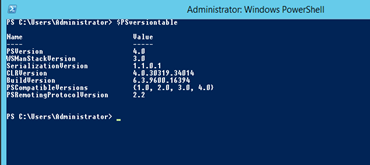
Windows Server 2012 has PowerShell version 4.0 so no update required
!
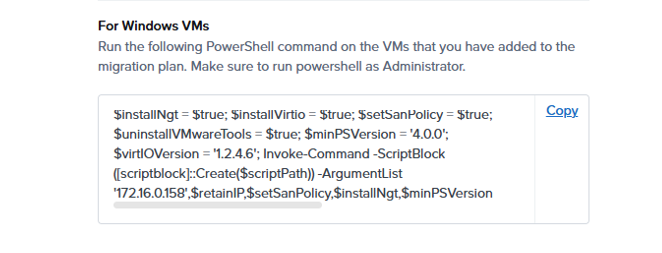
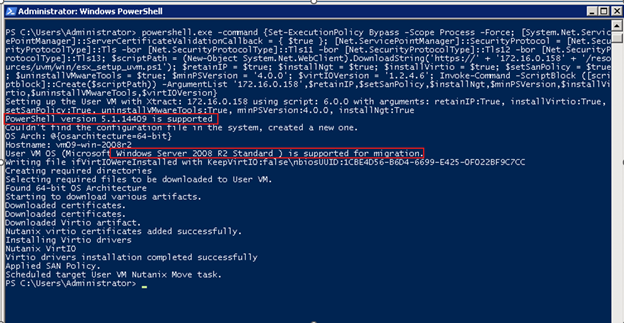
Run the Preparation Script to install VirtIO drivers
Go back to the Move console, Copy and Run the Preparation script on the target servers
Windows 2008 R2
Windows 2012
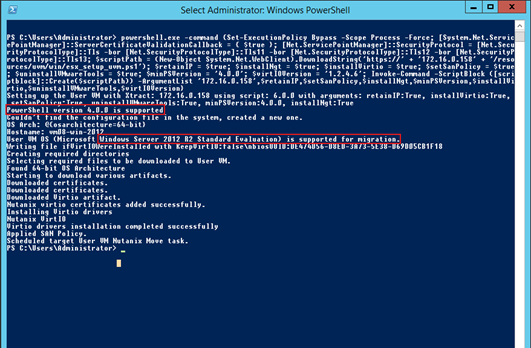
5) VM Settings
keep default setting
VM Migration
6) Summary
Review Summary and start
Wait for plan to validate and move to in progress, click on View Details to see the estimated remaining time The plan will move through various stages, Seeding Data, then Ready for Cutover
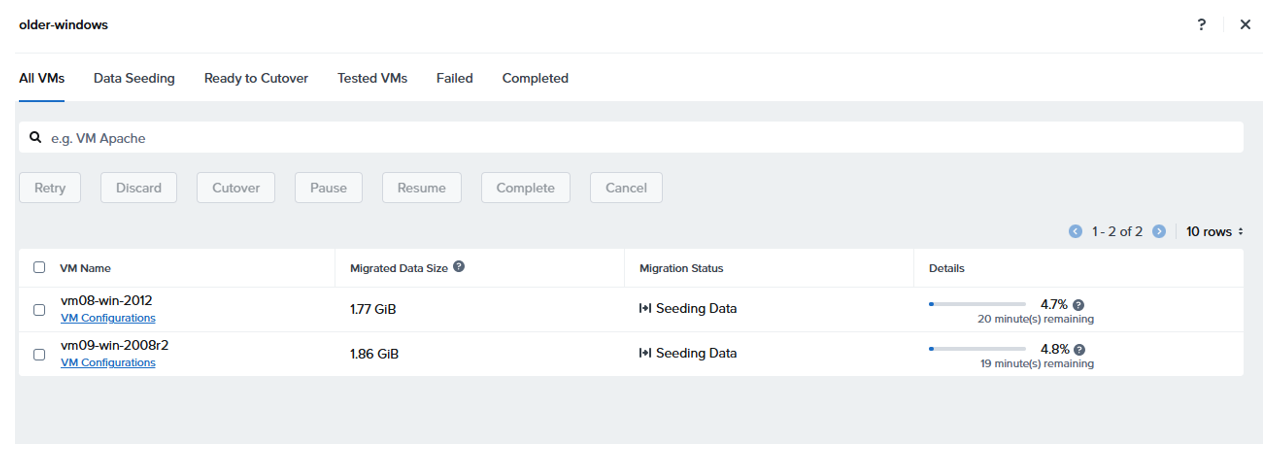
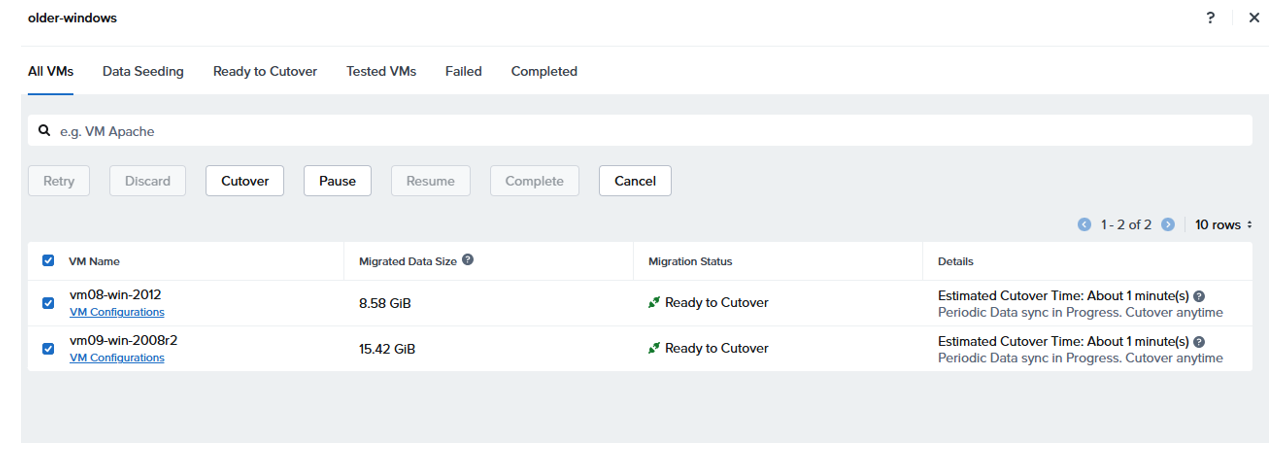
Once the Cutover option is selected the plan will stop the Source VM and Create and Configure Target VM
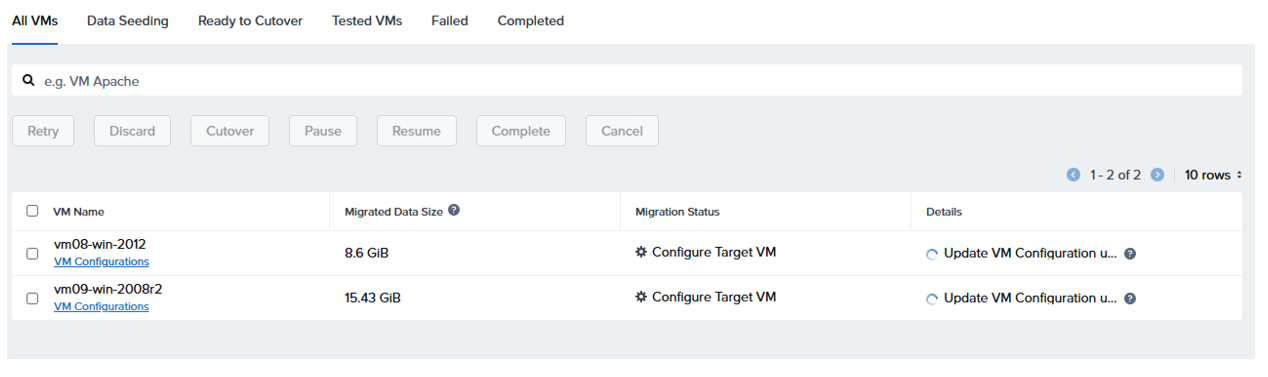
In Source VM Cleanup the Network card is removed from the Source VM
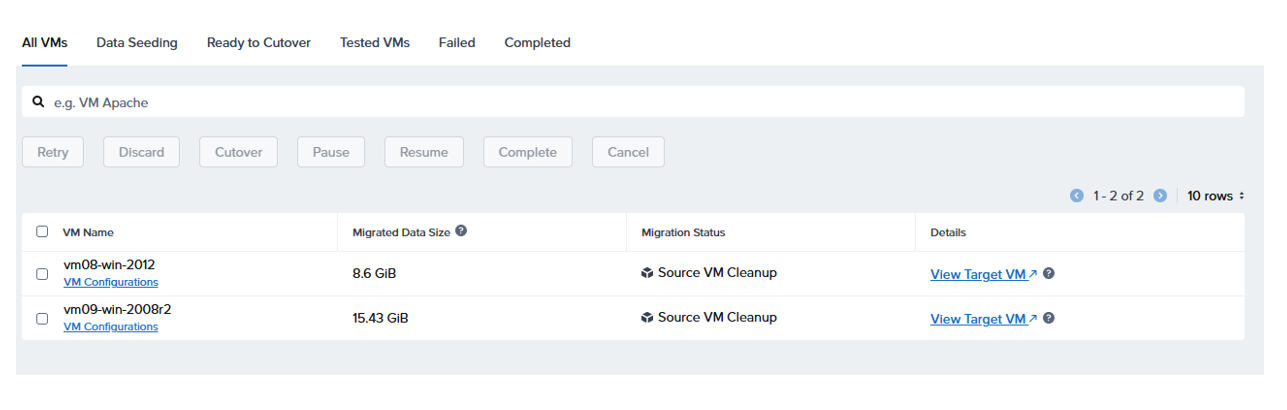
Click on the View Traget VM to open Prism Element Console
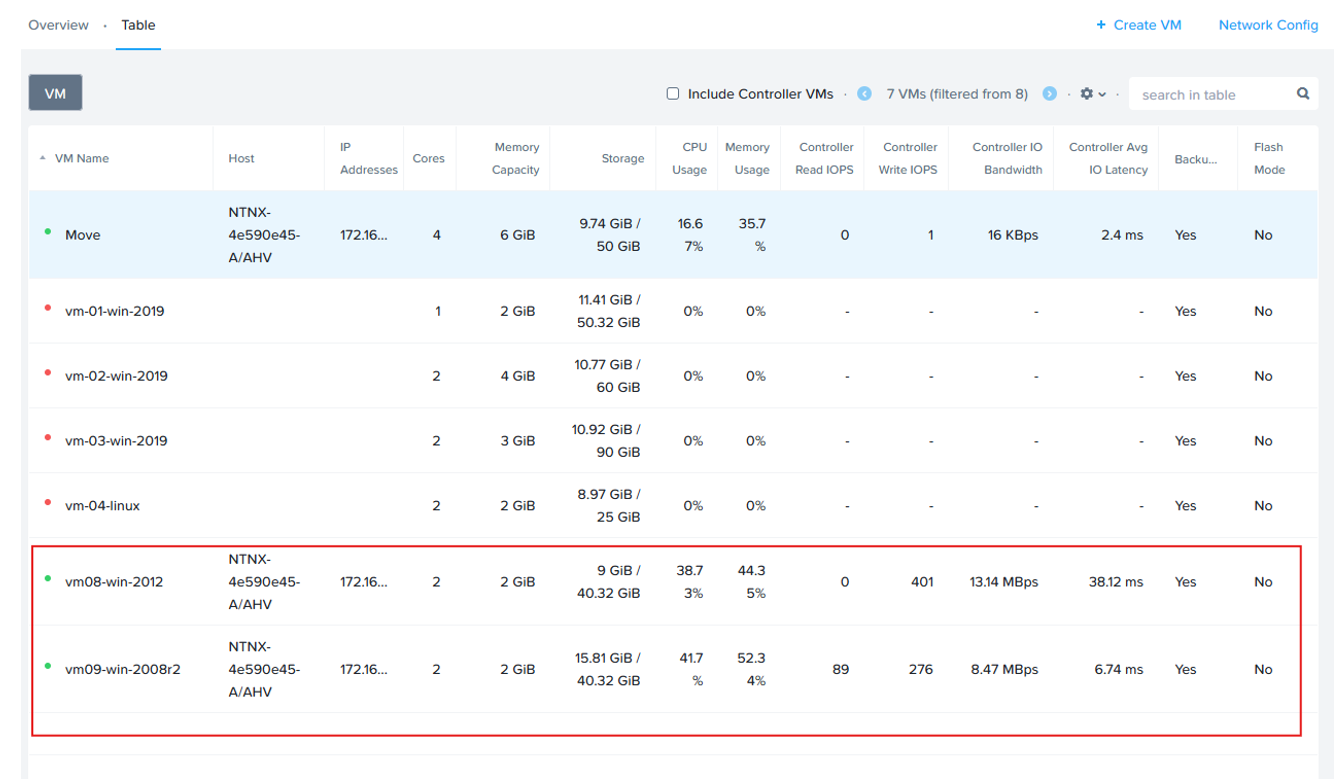
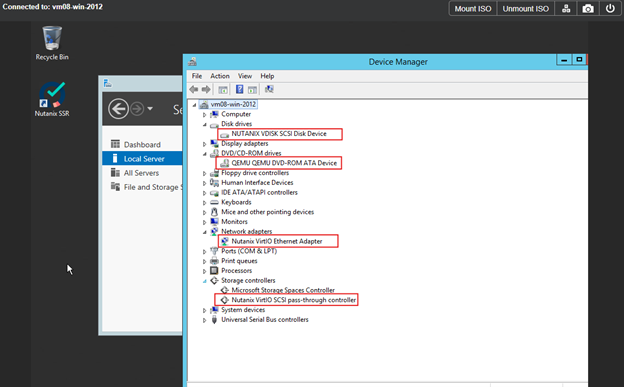
Validation
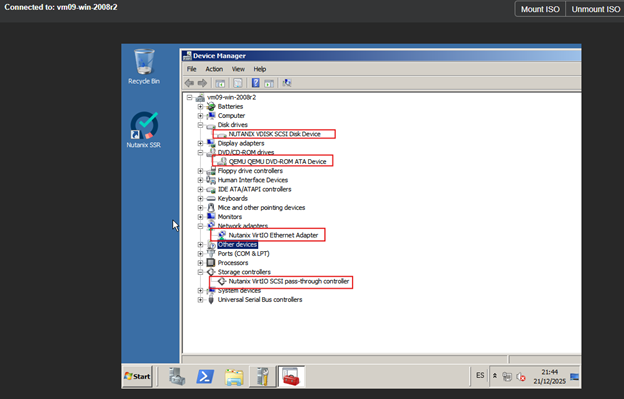
From Prism element connect to each server and open device manager
Conclusion
The current supported Nutanix software requires systems to be Windows 2008 SP1 or later with VMware tools installed. Powershell 4 is required (standard from Windows 2012 onwards) Updates to Powershell 4 will require NET Framework 4.5.2 or later
There is additional work for Windows 2008 Server, but the process is straightforward once the steps are understood Typically, the VM would be checked and prepared in advance of running the migration plan
Reference -
AVH Compatibility and Interoperability Matrix
#MCExperts, #MCX